 This is an extremely interesting concept, but I really wonder how it works in the real world. Toy projects are one thing, but real production size applications are a different story! The principle is very simple; just modify a piece of code in your project and the IDE automatically executes all of the unit tests. Pretty cool concept. But, what if your unit test suite runs for several hours? I believe this is an all too common problem. I have seen many projects dedicate time to building their unit tests, and over time, end up with test suites that can run for multiple hours. There is a very negative side effect associated with this scenario, it can change a developer’s attitude towards checking in code, it actually discourages it. If the developer knows their commits will not be validated for several hours, they tend to check in very infrequently and only when they feel it will not impact other developers. Many factors can contribute to this scenario. The primary factor is that many of these tests are not really unit tests; they typically do not provide the proper isolation (via mocking) and take too long to execute. I’m not going to address those issues directly, but the concept does support and encourage the idea of quick test execution.
 Wouldn’t it be cool to run all of the unit tests, in your IDE before checking in the your changes? Obviously, this action is expected by the developer and is completely possible without any special tools. However, it is not automatic and requires extra effort by the developer. Usually, it is easier to let the Continuous Integration server run the tests and fix the fallout later. It seems like a simple problem to solve; create a plug-in that automatically executes all of the unit tests saving a file, requiring no additional effort or interaction from the developer. If you are an Eclipse user, you have two good options, JUnit Max and Infinitest. I would really like to try Kent Beck’s JUnit Max, but you need to purchase a subscription to use (and even try) the plug-in. That is a show stopper for me, as there are free alternatives such as Infinitest. I evaluated the Infinitest plug-in last year, after it was open-sourced. I did encounter some problems with the plug-in, my Spring-based projects did not work; I was quickly discouraged and abandoned the tool. Months later, I was still intrigued by the idea, so I gave it a try last week on a different project and achieved success!
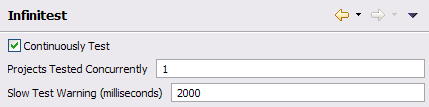
Unfortunately, Infinitest is not currently installable from the Eclipse Marketplace. It can be quickly installed the old fashioned way from the Eclipse update site. There is only one setting you may want to tweak, the Slow Test Warning threshold. If you have unit tests that execute for longer than half a second, Infinitest will add a warning to your Problems View for each one; this could be problematic if you have a large number of long running unit tests. You should also notice a huge new “Continuous Test” status bar in your Eclipse footer. It will update automatically based on your coding activity. JUnit Max is a little more subtle, but provides the same type of feedback mechanism. That’s it, you are now ready to write code and auto test!
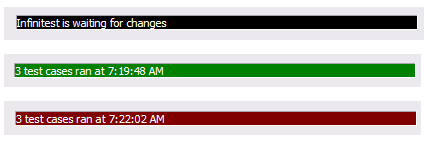 I’m not exactly sure how intelligent these plug-ins are, related to determining which unit tests to execute based on what code was changed. Hopefully that is the next level of continuous testing evolution. However, if you modify a single unit test, Infinitest will only run that single test; beyond that, I don’t believe there is much intelligence. If your code modification causes any unit tests to fail, the status bar will turn red. Unfortunately, it does not tell you how many test failed, it only provides the number of tests which it executed. If you mouse over the status bar, it will display the names of the tests which failed, but you can not click on them, they are just there for feedback. You will need to look in the Problems View to discover which test broke, the view will now contain markers for each failed test.
The only issue I have with the plugin, is around user interaction. It does not provide its own View for test results, it simply adds the failures to the existing items in the Problems View. I assumed that the Unit Test View would be updated with the test results, similar to manually running a unit test; however, this was not the case. It appears that both Infinitest and JUnit Max use the same strategy, providing minimal feedback to the developer. Maybe this a good approach, but I was expecting more visual feedback and confirmation. I associate static problems with the Problems View, such as compiler and code quality errors, not dynamic problems such as test failures. The developer should be able to click on a marker (problem) and be navigated to the exact line of code indicated by that marker, giving them the opportunity to resolve the issue . Here is my problem with this approach, if the developer clicks on the failed JUnit marker, where will they be navigated? The only possible location is the unit test which failed. Generally speaking, this is not where the problem would be found, it would lie in the code that was just changed. Given this issue, I would rather use a different View for continuously executed tests; maybe even better, find a way to reuse the existing Unit Test View.
This does bring up an interesting question, do these plug-ins minimize or eliminate the need for Continuous Integration? I don’t believe this is the case, but would seem to eliminate the need for some of the more advanced features the vendors are implementing. One such example is TeamCity’s remote build, pre-commit test feature. There are many factors to consider, but if unit tests execute quickly, I do not see the need for this functionality to be provided by the CI server. If the tests execute for multiple hours, we could be adding more risk into the process, by not committing changes when they are ready to integrate. Remote build, pre-commit testing sounds valuable on paper, but I am struggling to see the real benefits. I tend to think this functionality over complicates the Continuous Integration process. One of the main benefits of Continuous Integration is that it is seamless and automatic. Nothing is required by the development team to reap the CI benefits, simply check in your code early and often. As more education and process overhead are required by the CI process, it is no longer simple nor free. The focus should be on doing what makes sense, at the right time, in the right place. These IDE plug-ins seem to have correct perspective, pre-check-in on the developers desk, simple, automatic, and efficient.
I hope that you will try to integrate one of these plug-ins into your personal development process. I believe they will help create a more robust development process, creating fewer Continuous Integration failures and ultimately, a more efficient, faster executing test suite. If you have real world experience with one of these tools, please provide some comments. I am still curious, does this approach work on real projects?





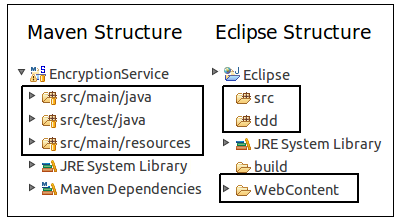 I never liked the required Maven directory structure; I must have subconsciously adopted the Eclipse project structure as my personal standard. Converting the project’s directory structure was trivial and soon realized it was not that big deal after all; I aways separate my source and test files anyway. The main difference is everything lives under the source root, including the WebContent directory. I’m not sure what the “preferred” process is for loading a Maven project into Eclipse, probably using the Maven
 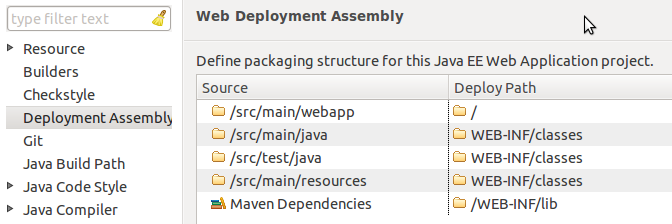 With the addition of the Eclipse “Deployment Assembly” options dialog, it is extremely easy manually configure your project. You need to have a Faceted Dynamic Web Module for the “Deployment Assembly” option to be visible, but that should be a fairly simple property change as well. At this point, you should have a fully functional, locally deployable web application.
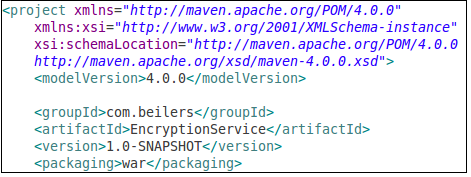 Now we can ignore Eclipse, and focus on building our WAR file using Maven. Even with the minimalist POM shown to the left (plus your dependencies section), it is possible to compile the code and create a basic WAR file. Use mvn compile to ensure that your code compiles. Using the Maven package goal, the source code is compiled, the unit tests are compiled and executed, and the WAR file is built. All of this functionality, without writing one line of XML!
 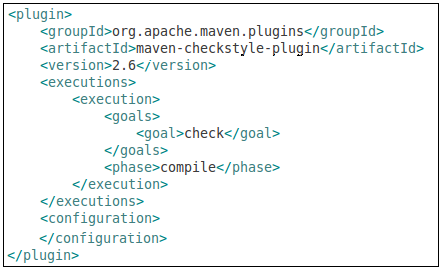 One of the more time consuming parts of an Ant-based build is integrating all of the “extras” typically associated with a project, making them available to the continuous integration server. The extras include: unit test execution, code coverage metrics, and quality verification tools such as Checkstyle, PMD, and FindBugs. This tools are all typically easy to setup, but every project implements them slightly different and never put the results into a standard place! The general process for adding new behavior (tools) to a build appears to be the same for most tools. You simply add the plug-in to the POM and configure it to fire the appropriate goals at the appropriate time in the Maven lifecycle. Ant does not have this lifecycle concept, but it seems like a very elegant way to add behavior into the build. From the following example, I added the Checkstyle tool to the POM. The <executions> section controls what and when the plug-in will be executed. In this example, the check goal will be executed during the compile phase of the build process. Simply executing the compile goal, will cause Checkstyle to be invoked as well. This seems like a very clean integration technique, one that does not cause refactoring ripples.
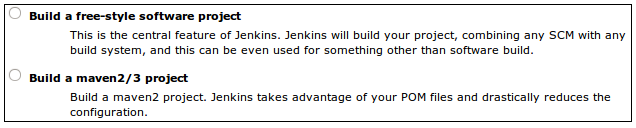 Most development teams also want their project monitored by a Continuous Integration (CI) process. Modern CI tools such as Hudson/Jenkins provide excellent dashboards for reporting a variety of quality metrics. As I previously stated, it is rather time consuming to develop and test the Ant XML required to generate and publish these metrics; combine that with configuring each CI server job to capture these metrics and you have added a fair amount of overhead.
 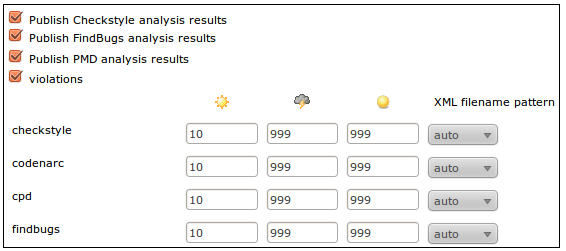 I knew there was support for Maven-based projects within Hudson/Jenkins, but never took the time to understand why it would be beneficial. The main benefit is right there in the description, had I bothered to read it! Configuring a Maven-based job is little more than clicking a few check boxes. No need configure them in Jenkins, using the information provided by Maven, it is basically automatic. This is one interesting aspect of the Hudson-Jenkins fork. Sonatype, the creator of the Nexus Maven Repository manager and the Eclipse Maven plug-in, have chosen the Hudson side of the battle. I wonder what this means for Maven support on the Jenkins side. Obviously, it will not go away, but that might end up being a Hudson advantage in the long run. I still believe that the Jenkins community will quickly out pace the Hudson community.
 Without first running a setup task in
 I have a love/hate relationship with the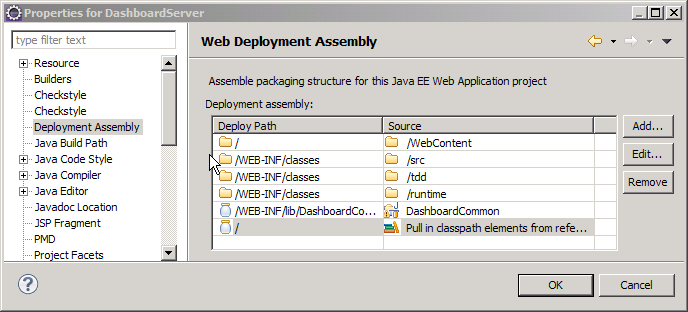
 This problem may have been answered in Eclipse 3.6 (Helios). I tested some of the 3.6 milestone releases, but was fooled into thinking that the IvyDE and WTP integration was broken; the J2EE module dependency option was no longer visible on the project properties. I was too busy to investigate (or look at other menu options!), I just assumed that it was just broken. To make a long story short, there is a new menu option called Deployment Assembly. The new option is a much simpler concept to comprehend; it is more flexible and actually seems to work consistently with Ivy. The most obvious change is the presentation; it gives a better picture of how the web application will be assembled. The old J2EE Module Dependency manager allowed you to choose components, but might have been more tailored for building an EAR file, rather than a WAR. Another issues is the inability to exclude any of the “source” folders. If you manage your unit test classes in a separate source folder, they would also be included in the application (WAR). Not necessarily a problem, but not very clean and could possibly hide unintended dependencies between the two source trees.
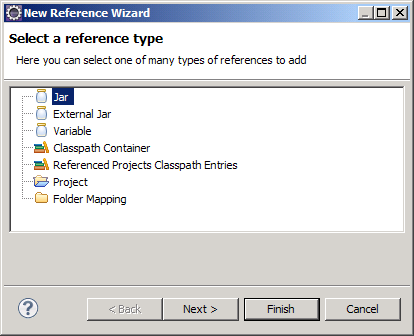
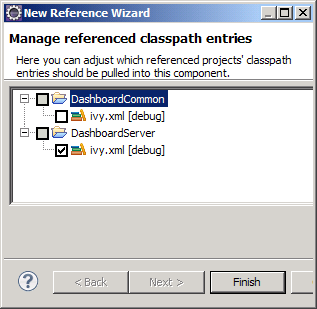 When using IvyDE, the first step is to add an Ivy classpath container. This will add Ivy dependencies to the classpath of your Eclipse project. If you have a WTP project, you will also need these dependencies copied to the WEB-INF/lib directory. This is easily accomplished by clicking the Add button under Deployment Assembly (under project properties). You can add other projects and external jars as well. Here is where it gets interesting, there appears to be two different options. If you have already added the Ivy classpath container to your build path, click the “Referenced Classpath Entries” option and select the ivy.xml file from your project. There might be a little display problem, as the “Deploy Path” for the classpath container does not appear correct, but it does put the libraries in the correct directory location.
 I am kind of tied to Eclipse as my IDE, but do play with NetBeans every so often. I think I could switch to NetBeans, my only real requirement is that the IDE must have Emacs key bindings; some habits are just too hard to break! NetBeans looks like an pretty good tool and seems to be very responsive on my Ubuntu box; I especially like the way it manages plug-ins. One interesting thing that NetBeans does (maybe a little better than Eclipse), is manage unit testing. NetBeans will automatically create the secondary source tree, but seems to default to in-package testing. It is very easy to add the additional test package into the package structure to enable API testing. I also like the way that NetBeans separates the Test Libraries from the regular Libraries. I’m not sure how well this would work when you use a tool like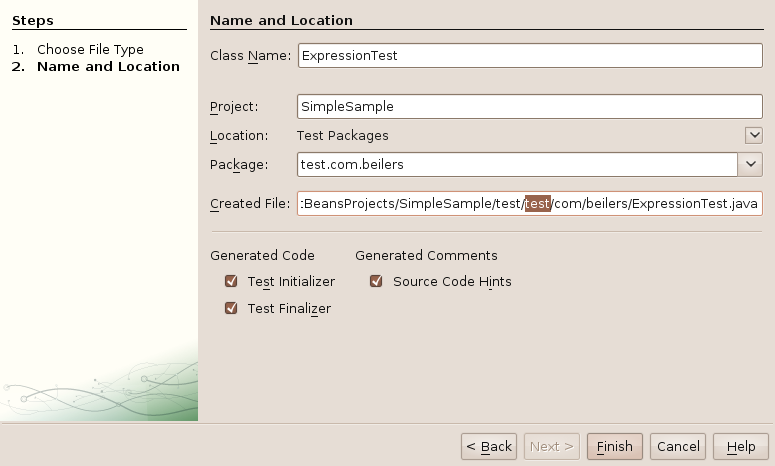

 This was making me crazy the other night… I did not spend too much time on it, thinking is was just me. But, after upgrading my laptop and encountering the exact same problem, I knew there was more too it. It seemed like only the cancel buttons actually worked; all of the next and finish buttons did absolutely nothing, other then beep! I soon realized that I could use the tab key and press enter to move to the next screen; but that did not make me very happy.
 It also

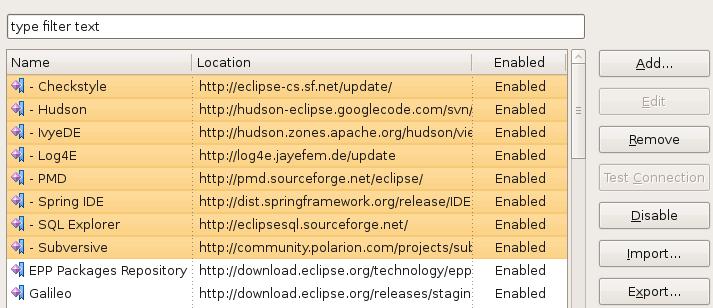 The Eclipse developers did a really nice upgrade to the Plug-in manager in the new Galileo release. Managing plug-in sites seems much easier and cleaner with the new Available Software Sites menu option in the main preferences area. Not really a new feature, but seemingly more obvious, is the ability to import and export update sites to and from your team mates. I have exported my settings and linked them to the XML file icon on the left. Simply download the XML file and import them into Eclipse and you are ready to go. I can’t believe I never used this feature in the previous versions!
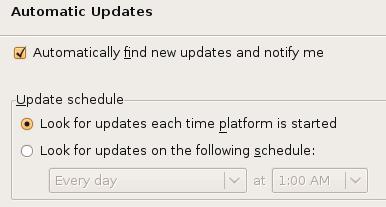 This is not a new feature either, but one that I always seem to forget! I just hit the Check for updates option every so often; not nearly as convenient! You can find this option under the Install/Update preferences panel as well.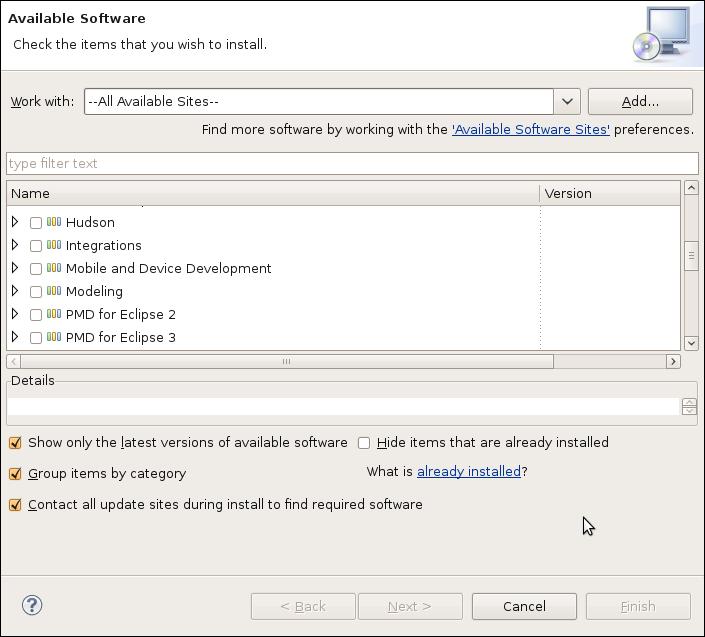
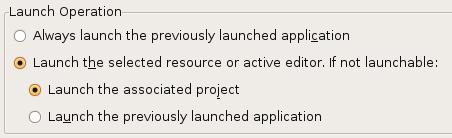
 I have to give credit to a co-worker who overheard me complaining about Eclipse one day… Ever since upgrading to the Ganymede version of Eclipse, the launch buttons for executing and debugging applications and unit tests were tied to the currently active editor. This was so annoying, I could not believe the Eclipse developers changed this behavior. Every time I clicked on the button, Eclipse would ask me what I wanted to do…. No, I don’t want to execute the XML file I was looking! No, I don’t want to execute the random Java file that I just fixed; I want to run the last unit test!
 I might be in the minority, but I’m just not that excited by this release of Eclipse. I started using the RC3 version for real last week, and have had no issues at all; it seems very solid. I attempted to use with the first couple release candidates, but they did not seem to play well with the Subversion plug-ins. I’m sure it was user error; it could not have been that messed up! For whatever reason, Eclipse completely toasted my work area (multiple attempts) after every commit. Needless to say, I did not even bother using them. I have Eclipse integrated with the Spring IDE, Checkstyle, PMD, and Ivy plug-ins. I heavily use the Web Tools Platform for deploying web applications to Tomcat. At least for what I have been doing lately, there is nothing to get me really excited. I think the best part is, that everything still just works! I notice a new little feature every so often, but nothing that says that’s a keeper! I have been using the
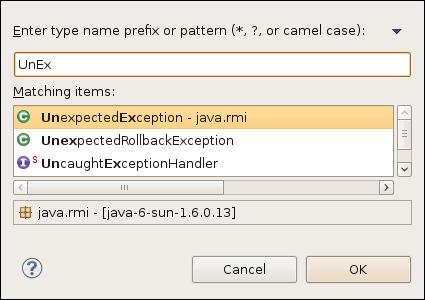
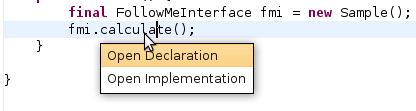
 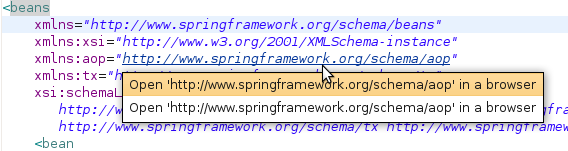 years and was glad to see they finally implemented this feature within Eclipse. It works pretty well, but they only implemented half of the functionality! With the Implementors plug-in, you can click on the interface method and ask to see all of the concrete implementations. You can, sort of, get the same functionality through the type hierarchy view, but not as nicely. After seeing the Open Implementation feature, I thought this was a new feature too; I did not know that you could just click on a URL and have it open up in the browser, kind of handy!